Connect to Looker with MCP Toolbox in Google Cloud Run
2 minute read
Running MCP Toolbox in Google Cloud Run
It is easy to run MCP Toolbox in Google Cloud Run.
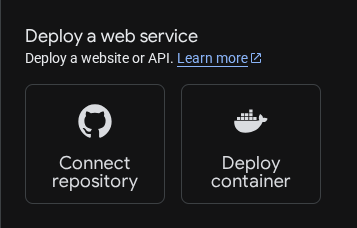
Navigate to Cloud Run Overview in a Google Cloud Console project. Choose “Deploy container”:
Set the “Image name” to
us-central1-docker.pkg.dev/database-toolbox/toolbox/toolbox:latest. Set the “Service name” tolooker-mcp-toolboxand choose the “Region”. Note the “Endpoint URL”, you will need it later. Set the “Authentication” to “Public”.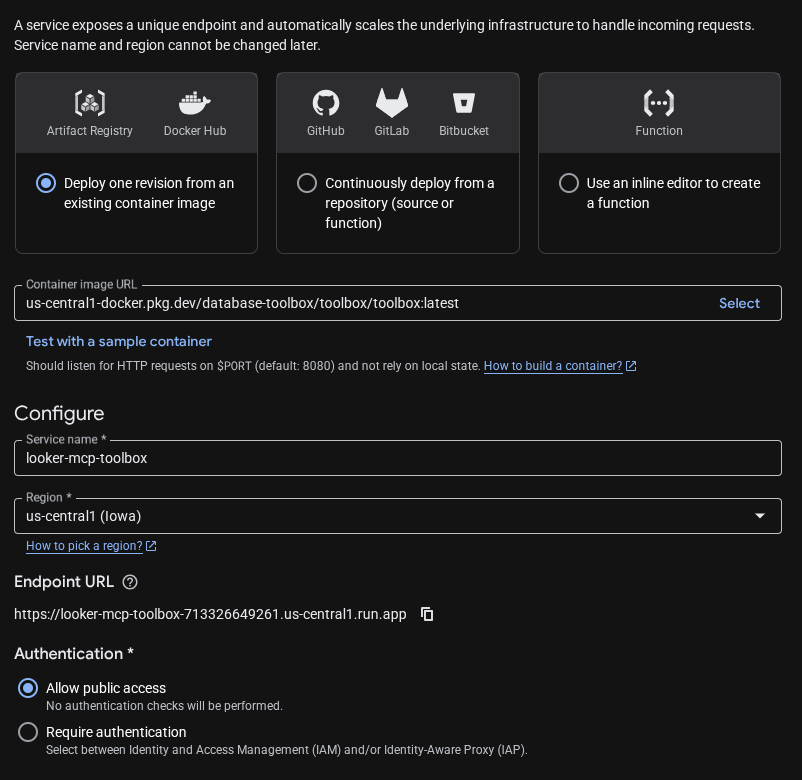
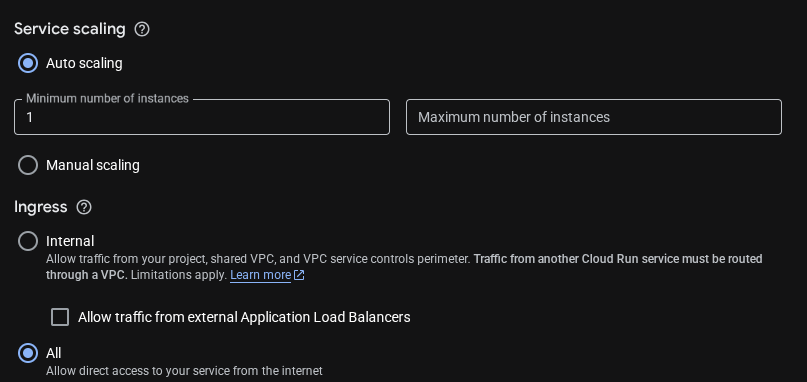
Set “Service scaling” to Auto with a minimum number of instances of “1”. Set “Ingress” to “All”.
Now open the drop down for “Containers, Networking, Security”.
Under “Container settings” set “Container arguments” to
--prebuilt=looker,looker-dev,--port=8080,--address=0.0.0.0, and--mcp-prm-file=/app/prm_file.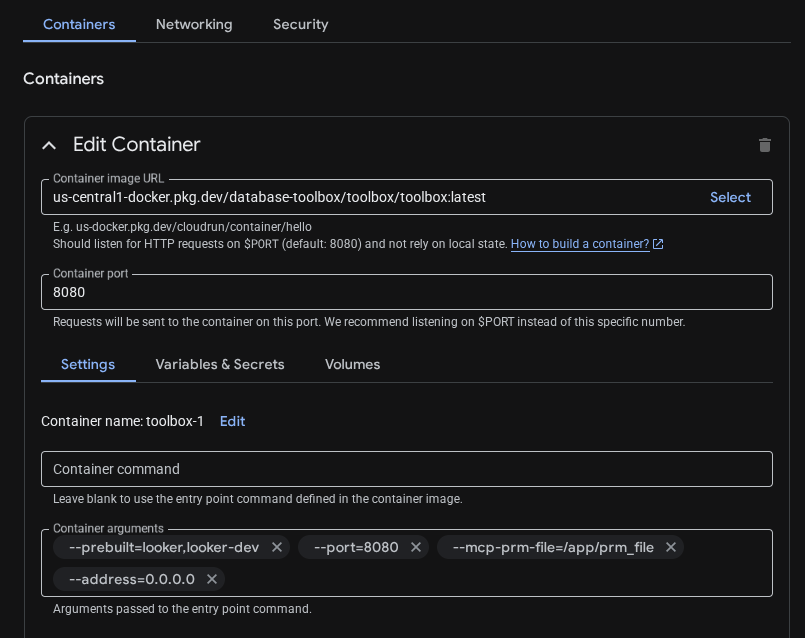
Under “Variables & Secrets” set
LOOKER_BASE_URL, setting it to the URL of your Looker server, andLOOKER_USE_CLIENT_OAUTH=true.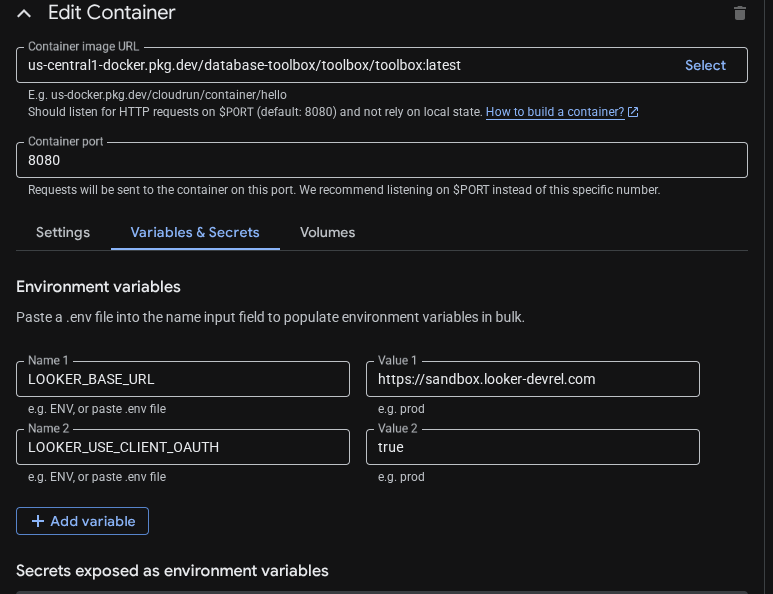
Under “Container Volumes” mount a new Secret Volume with a mount path of
/app. Create a new secretprm_filewith the contents of the PRM, for example:{ "resource": "https://<your-cloud-run-url>/mcp", "authorization_servers": ["https://<your-looker-instance>.looker.com"], "scopes_supported": ["cors_api"] }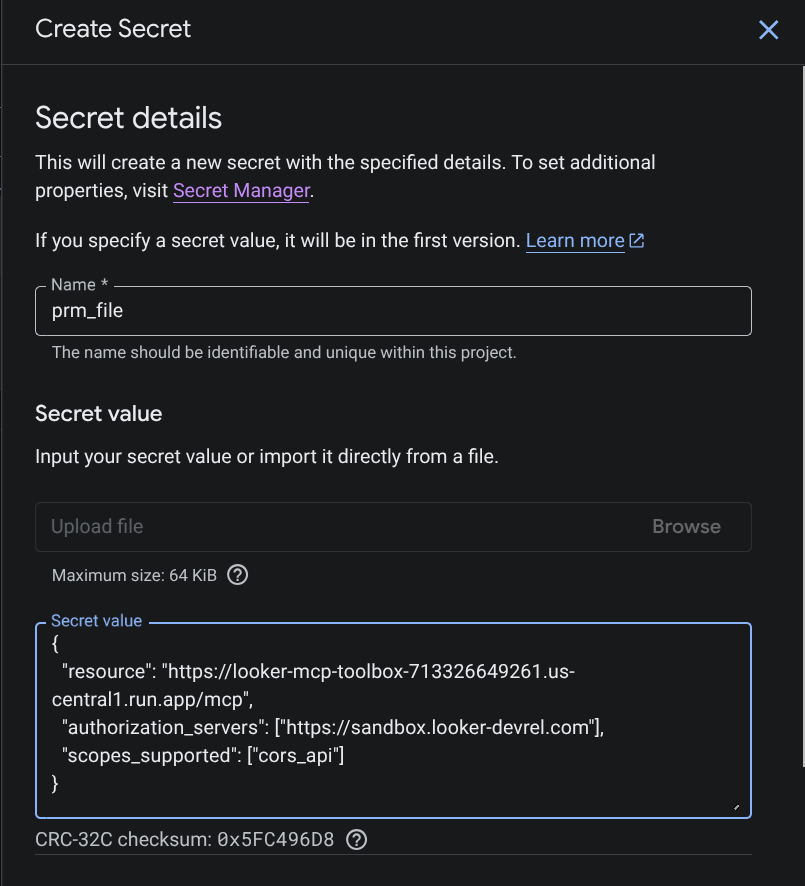
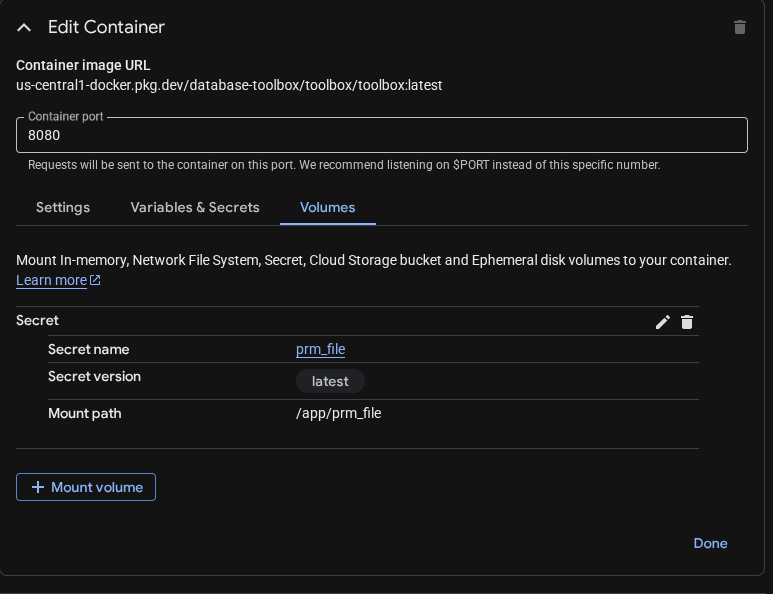
You may also need to go to IAM and grant the role “Secret Manager Secret Accessor” to your compute service account identity.
Now click “Done” in the lower right corner. Then click Create to start the service.
Validate the service is running by going to the URL, followed by
/.well-known/oauth-protected-resource.
Tip
Be sure to look at the Toolbox CLI Reference, specifically the subsection on “Hardening Toolbox” for security recommendations. You may want to specify additional settings under “Container arguments”.
Using the MCP Toolbox Via OAuth and Gemini CLI
Follow the directions to register the OAuth App in Looker
In
$HOME/.gemini/settings.jsonadd the following stanza, using the Endpoint URL you saved earlier with/mcpappended."mcpServers": { "looker": { "httpUrl": "https://<your-cloud-run-url>/mcp", "oauth": { "clientId": "gemini-cli", "redirectUri": "http://localhost:7777/oauth/callback" } } },Start Gemini CLI and issue the command
/mcp auth looker. Gemini CLI will start the OAuth flow. Approve access in the browser.Validate that everything works by issuing a prompt in Gemini CLI like “What Looker models do I have access to?”
Feedback
Was this page helpful?
Glad to hear it! Please tell us how we can improve.
Sorry to hear that. Please tell us how we can improve.